> ## Documentation Index
> Fetch the complete documentation index at: https://mania.bot/docs/llms.txt
> Use this file to discover all available pages before exploring further.

# Capture

> How MANIA sees your game

### Local

The simplest option; MANIA detects and captures MapleStory on the same PC automatically. Recommended for **private servers** and **MapleStory N** since the detection risk is low and anti-cheat is less sophisticated.

### Remote

Run MANIA and MapleStory on separate machines, so the game's anti-cheat has no way to detect it. Takes a bit more setup, but recommended for **official servers** such as **GMS** and **KMS** for maximum security.

| Setup                                                            | PCs Required | PCs Occupied |
| ---------------------------------------------------------------- | ------------ | ------------ |
| Local                                                            | 1            | 1            |
| GeForce NOW                                                      | 1            | 1            |
| Remote + Software Input                                          | 2            | 2            |
| Remote + [Hardware Input](/docs/hardware-input#remote-hardware-input) | 2            | 1            |

For local and remote with software input, the MapleStory window must stay focused. Hardware input removes the focus requirement, freeing up your MANIA PC entirely.

<Tabs>
  <Tab title="Local Capture">
    <div className="my-4 rounded-xl border border-red-500/40 bg-red-50 p-4 text-red-900 dark:border-red-400/40 dark:bg-red-950/40 dark:text-red-100">
      <div className="mb-2 flex items-center gap-2 font-semibold">
        <svg xmlns="http://www.w3.org/2000/svg" viewBox="0 0 20 20" fill="currentColor" className="h-5 w-5">
          <path fillRule="evenodd" d="M8.485 2.495c.673-1.167 2.357-1.167 3.03 0l6.28 10.875c.673 1.167-.17 2.625-1.516 2.625H3.72c-1.347 0-2.189-1.458-1.515-2.625L8.485 2.495zM10 6a.75.75 0 01.75.75v3.5a.75.75 0 01-1.5 0v-3.5A.75.75 0 0110 6zm0 9a1 1 0 100-2 1 1 0 000 2z" clipRule="evenodd" />
        </svg>

        GMS PLAYERS ON WINDOWS:
      </div>

      **You MUST use a Remote Configuration**: MANIA utilizes multi-layered obfuscation techniques to keep you safe, but running GMS in a local configuration will never be safe.
    </div>

    <Warning>
      Disable **Night Light** (Windows) or **Night Shift** (MacOS), color shifts throw off pixel detection and cause capture to fail.
    </Warning>

    Everything runs on one PC. MANIA finds and captures MapleStory automatically. You may need to set **Settings → MapleStory Version → Classic** if you are on an old school server.

    **Resolution:**

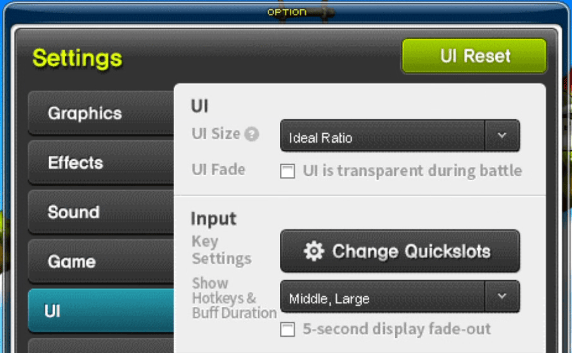
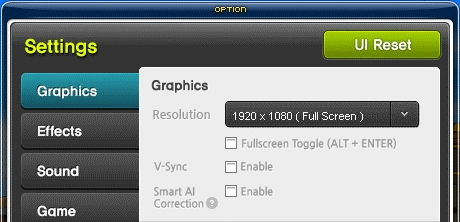
    * Set MapleStory to `1366x768` (or `1920x1080` with **UI → Ideal Ratio**).
    * Old school servers use `1280x720` instead.

    Disable `UI is transparent during battle`.

    <Columns cols={2}>
      <Frame>
        <img src="https://mintcdn.com/mania/3jgbNunZBw7600bS/images/maplestory-graphics.png?fit=max&auto=format&n=3jgbNunZBw7600bS&q=85&s=80daf9ebbf27fbe7672c5bc331ffddff" alt="MapleStory graphics settings" width="460" height="222" data-path="images/maplestory-graphics.png" />
      </Frame>

      <Frame>
        <img src="https://mintcdn.com/mania/JXGHqNIgBwQZ-G49/images/maplestory-ui.png?fit=max&auto=format&n=JXGHqNIgBwQZ-G49&q=85&s=0087d5f7aff00a70c92aa09fbed58240" alt="MapleStory UI settings" width="572" height="353" data-path="images/maplestory-ui.png" />
      </Frame>
    </Columns>
  </Tab>

  <Tab title="Remote Capture">
    <Warning>
      Disable **Night Light** (Windows) or **Night Shift** (MacOS), color shifts throw off pixel detection and cause capture to fail.
    </Warning>

    MANIA and MapleStory run on separate machines.

    <Tabs>
      <Tab title="GeForce NOW">
        Stream MapleStory from [GeForce NOW](https://www.nvidia.com/en-us/geforce-now/) and capture it on your PC.

        Only requires 1 PC and is easy to set up, costs \~\$10/mo with a 100h/month limit.

        <Warning>
          [Hardware input](/docs/hardware-input) is **not compatible** with GFN — it requires a physical USB connection to the game PC, and GFN runs in the cloud.
        </Warning>

        **Goal:** Make the remote game appear in a window as if running locally, with no stretching or borders; Confirm this with the "Live Capture" tab under Capture in MANIA.

        Choose either `1366x768` or `1920x1080` and make sure all resolutions match.

        <Steps>
          <Step title="Get GeForce NOW">
            * [Download GeForce NOW](https://download.nvidia.com/gfnpc/GeForceNOW-release.exe) and sign up for a plan.
          </Step>

          <Step title="Set Windows mouse settings">
            * **Windows 10:**
              * Search **"Mouse Settings"**
              * Click **"Additional mouse options"**
              * Click **"Pointer Options"** tab
            * **Windows 11:**
              * Search **"Change the mouse pointer display or speed"**
              * Click **"Pointer Options"** tab
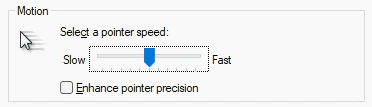
            * Set pointer speed to the **middle notch**
            * Turn off **Enhance pointer precision**

            <Frame>
              <img src="https://mintcdn.com/mania/Sj6PMe-kJYlLtGN_/images/gfn-pointer-settings.png?fit=max&auto=format&n=Sj6PMe-kJYlLtGN_&q=85&s=5a63534998623b629570d638b37cc5db" alt="Mouse Pointer Options settings" width="300" data-path="images/gfn-pointer-settings.png" />
            </Frame>
          </Step>

          <Step title="Set GeForce NOW resolution">
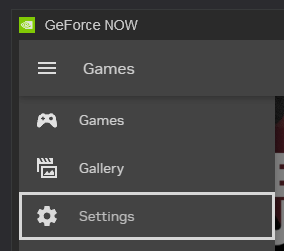
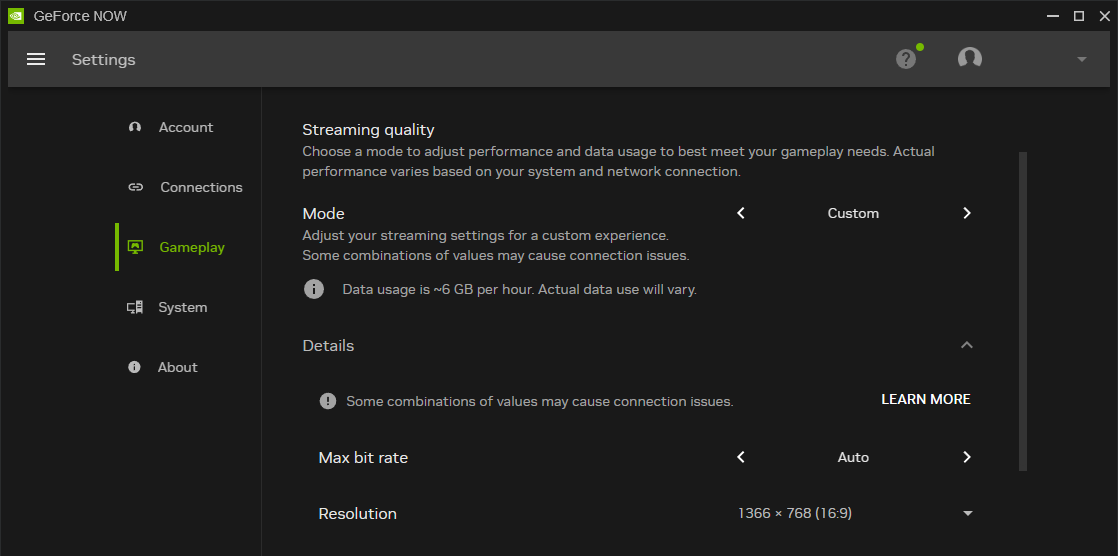
            * Go to **GFN Settings → Gameplay**
            * Set to either `1366x768` or `1920x1080`
            * Restart GeForce NOW to apply resolution changes

            <Columns cols={2}>
              <Frame>
                <img src="https://mintcdn.com/mania/3jgbNunZBw7600bS/images/gfn-settings.png?fit=max&auto=format&n=3jgbNunZBw7600bS&q=85&s=87342c53b5010fd954b78c1b5e7421b2" alt="GeForce NOW settings" width="172" data-path="images/gfn-settings.png" />
              </Frame>

              <Frame>
                <img src="https://mintcdn.com/mania/3jgbNunZBw7600bS/images/gfn-resolution.png?fit=max&auto=format&n=3jgbNunZBw7600bS&q=85&s=7fb723d2da8c6bad694c25fbf4cb3fdc" alt="GeForce NOW resolution" width="1118" height="556" data-path="images/gfn-resolution.png" />
              </Frame>
            </Columns>
          </Step>

          <Step title="Sign in to Steam">
            * [Link your Nexon account](https://playersupport.nexon.com/hc/en-us/articles/360001475706-Linking-Nexon-and-Steam-Accounts) if needed.
          </Step>

          <Step title="Set MapleStory resolution">
            * Go to **Settings → Graphics → Resolution**
            * Set to `Full Screen` — same as your GeForce NOW resolution
            * For `1920x1080`, set **UI → UI Size** to **Ideal Ratio**
            * Disable `UI is transparent during battle`

            <Columns cols={2}>
              <Frame>
                <img src="https://mintcdn.com/mania/3jgbNunZBw7600bS/images/maplestory-graphics.png?fit=max&auto=format&n=3jgbNunZBw7600bS&q=85&s=80daf9ebbf27fbe7672c5bc331ffddff" alt="MapleStory graphics settings" width="460" height="222" data-path="images/maplestory-graphics.png" />
              </Frame>

              <Frame>
                <img src="https://mintcdn.com/mania/JXGHqNIgBwQZ-G49/images/maplestory-ui.png?fit=max&auto=format&n=JXGHqNIgBwQZ-G49&q=85&s=0087d5f7aff00a70c92aa09fbed58240" alt="MapleStory UI settings" width="572" height="353" data-path="images/maplestory-ui.png" />
              </Frame>
            </Columns>
          </Step>

          <Step title="Resize remote window">
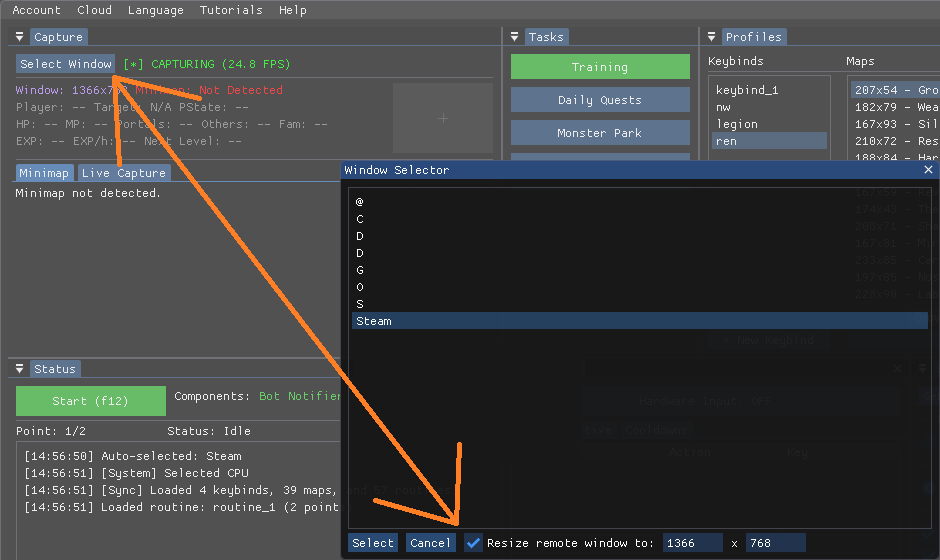
            * In MANIA, go to **Select Window → Resize remote window**
            * Set this to `1366x768` or `1920x1080`

            This must match your GeForce NOW and MapleStory resolutions

            <Frame>
              <img src="https://mintcdn.com/mania/3jgbNunZBw7600bS/images/resize-window.png?fit=max&auto=format&n=3jgbNunZBw7600bS&q=85&s=0f9f44c5090f67bdd8ea64e1d672b1ad" alt="Resize remote window" width="300" data-path="images/resize-window.png" />
            </Frame>
          </Step>
        </Steps>
      </Tab>

      <Tab title="Remote Desktop Software">
        Connect two PCs using remote desktop software, allowing you to view and control one PC from another.

        <Warning>
          **Avoid:** Parsec, Chrome Remote Desktop, Sunshine, Apollo, RustDesk, NoMachine, Shadow PC

          Don't ask for recommendations - anything shared publicly gets blacklisted.
        </Warning>

        <Warning>
          **Steam Link** does not support software mouse input. You'll need [hardware input](/docs/hardware-input#remote-hardware-input) to use it.
        </Warning>

        **Goal:** Make the remote game appear in a window as if running locally, with no stretching or borders. Choose either `1366x768` or `1920x1080` and make sure all resolutions match.

        <Steps>
          <Step title="Find remote desktop software">
            * Search Google — there are 10+ free options easily available.
          </Step>

          <Step title="Install remote desktop software on both PCs">
            * Connect to your MapleStory PC and verify you can control it.
          </Step>

          <Step title="Set MapleStory PC's desktop resolution">
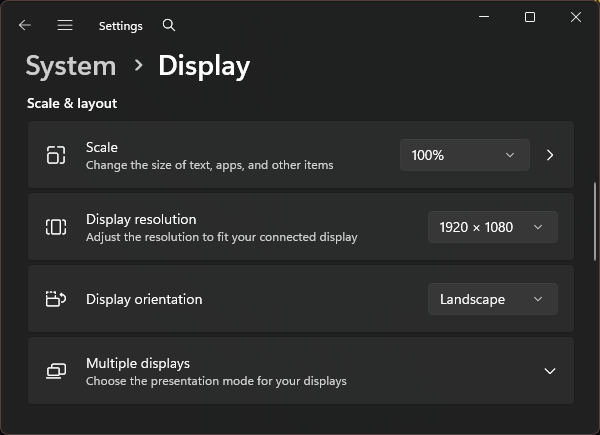
            * **Right-click desktop → Display settings → Display resolution**
            * Set to `1920x1080` or `1366x768`

            <Frame>
              <img src="https://mintcdn.com/mania/3jgbNunZBw7600bS/images/display-resolution.png?fit=max&auto=format&n=3jgbNunZBw7600bS&q=85&s=c83c5bc18d404545e42b914576a1e289" alt="Display resolution settings" width="300" data-path="images/display-resolution.png" />
            </Frame>
          </Step>

          <Step title="Set MapleStory resolution">
            * Go to **Settings → Graphics → Resolution**
            * Set to `Full Screen` — same as your desktop resolution
            * For `1920x1080`, set **UI → UI Size** to **Ideal Ratio**
            * Disable `UI is transparent during battle`

            <Columns cols={2}>
              <Frame>
                <img src="https://mintcdn.com/mania/3jgbNunZBw7600bS/images/maplestory-graphics.png?fit=max&auto=format&n=3jgbNunZBw7600bS&q=85&s=80daf9ebbf27fbe7672c5bc331ffddff" alt="MapleStory graphics settings" width="460" height="222" data-path="images/maplestory-graphics.png" />
              </Frame>

              <Frame>
                <img src="https://mintcdn.com/mania/JXGHqNIgBwQZ-G49/images/maplestory-ui.png?fit=max&auto=format&n=JXGHqNIgBwQZ-G49&q=85&s=0087d5f7aff00a70c92aa09fbed58240" alt="MapleStory UI settings" width="572" height="353" data-path="images/maplestory-ui.png" />
              </Frame>
            </Columns>
          </Step>

          <Step title="Resize remote window">
            * In MANIA, go to **Select Window → Resize remote window**
            * Set this to `1366x768` or `1920x1080`

            This must match your MapleStory desktop and MapleStory resolutions.

            <Frame>
              <img src="https://mintcdn.com/mania/3jgbNunZBw7600bS/images/resize-window.png?fit=max&auto=format&n=3jgbNunZBw7600bS&q=85&s=0f9f44c5090f67bdd8ea64e1d672b1ad" alt="Resize remote window" width="300" data-path="images/resize-window.png" />
            </Frame>
          </Step>
        </Steps>
      </Tab>

      <Tab title="Capture Card">
        Connect two PCs using a capture card and transmit video from the MapleStory PC to your MANIA PC. You'll need [remote hardware input](/docs/hardware-input#remote-hardware-input) to control the game.

        <CardGroup cols={3}>
          <Card title="MS PC →" icon="computer">MapleStory (HDMI)</Card>
          <Card title="Capture Card →" icon="video">HDMI → USB</Card>
          <Card title="MANIA PC" icon="computer">Captures video</Card>
        </CardGroup>

        <Accordion title="What to buy (~$20 USD)">
          * A capture card that **outputs** `1080p` at `60fps` over **USB 3.0**
          * HDMI cable
        </Accordion>

        <Steps>
          <Step title="Connect the capture card">
            * Plug the **HDMI cable** into the **HDMI port** on your **MapleStory PC**
            * Plug the other end into the **capture card's HDMI IN** port
            * Plug the **capture card** into any **USB port** on your **MANIA PC**
          </Step>

          <Step title="Set MapleStory PC's desktop resolution">
            * **Right-click desktop → Display settings → Display resolution**
            * Set to `1920x1080`

            <Frame>
              <img src="https://mintcdn.com/mania/3jgbNunZBw7600bS/images/display-resolution.png?fit=max&auto=format&n=3jgbNunZBw7600bS&q=85&s=c83c5bc18d404545e42b914576a1e289" alt="Display resolution settings" width="300" data-path="images/display-resolution.png" />
            </Frame>
          </Step>

          <Step title="Set MapleStory PC's capture card output">
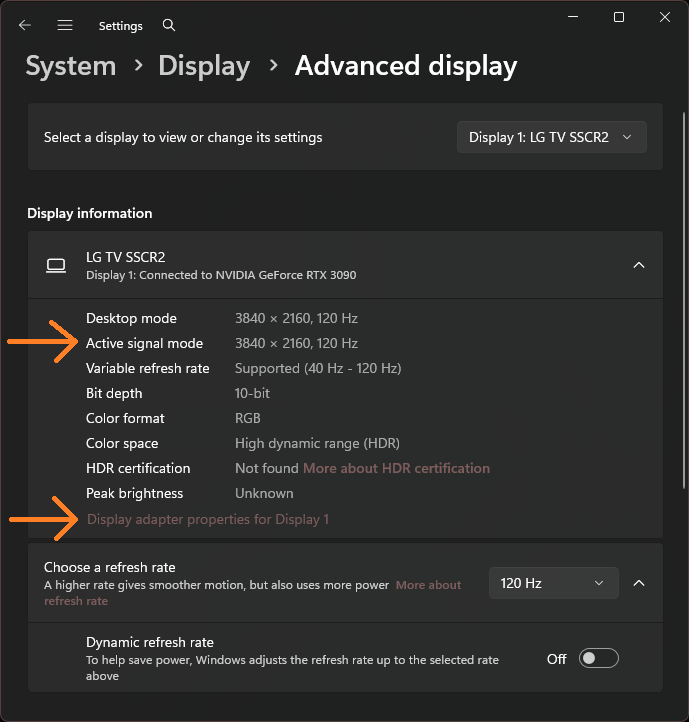
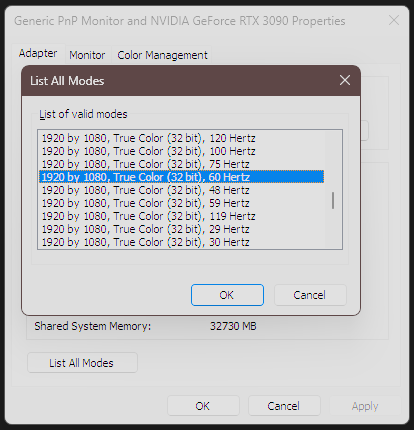
            * Check **Display settings → Advanced display → Active signal mode**
            * Set `1920x1080 60Hz` in **Display adapter properties → List All Modes**

            <Columns cols={2}>
              <Frame>
                <img src="https://mintcdn.com/mania/3jgbNunZBw7600bS/images/active-signal-resolution.png?fit=max&auto=format&n=3jgbNunZBw7600bS&q=85&s=19449e48594d9c213ef97afe83e1a135" alt="Active signal resolution" width="200" data-path="images/active-signal-resolution.png" />
              </Frame>

              <Frame>
                <img src="https://mintcdn.com/mania/3jgbNunZBw7600bS/images/list-all-modes.png?fit=max&auto=format&n=3jgbNunZBw7600bS&q=85&s=5f6ff57815055fee395d873399c03246" alt="List All Modes" width="200" data-path="images/list-all-modes.png" />
              </Frame>
            </Columns>
          </Step>

          <Step title="Set MapleStory resolution">
            * Set **Settings → Graphics → Resolution** to `1920x1080 (Full Screen)`
            * Set **UI → UI Size** to **Ideal Ratio**
            * Disable `UI is transparent during battle`

            <Columns cols={2}>
              <Frame>
                <img src="https://mintcdn.com/mania/3jgbNunZBw7600bS/images/maplestory-graphics.png?fit=max&auto=format&n=3jgbNunZBw7600bS&q=85&s=80daf9ebbf27fbe7672c5bc331ffddff" alt="MapleStory graphics settings" width="460" height="222" data-path="images/maplestory-graphics.png" />
              </Frame>

              <Frame>
                <img src="https://mintcdn.com/mania/JXGHqNIgBwQZ-G49/images/maplestory-ui.png?fit=max&auto=format&n=JXGHqNIgBwQZ-G49&q=85&s=0087d5f7aff00a70c92aa09fbed58240" alt="MapleStory UI settings" width="572" height="353" data-path="images/maplestory-ui.png" />
              </Frame>
            </Columns>
          </Step>

          <Step title="Select your capture card">
            * In MANIA, click **Select Window** and choose your capture card

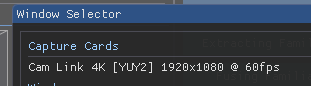
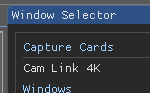
            If the output is set correctly, the card should list its resolution and framerate.

            If it instead lists a **compressed format** such as `MJPG`, it won't work properly. Plug it into a **USB 3.0 port** (usually blue).

            <Columns cols={2}>
              <Frame caption="Correct ✓">
                <img src="https://mintcdn.com/mania/sIfS_Rhh549GSygq/images/correctcapturecard.png?fit=max&auto=format&n=sIfS_Rhh549GSygq&q=85&s=0990afba91695699b2cd2a0ea2962444" alt="Capture card listed with resolution and framerate in the Window Selector" width="311" height="86" data-path="images/correctcapturecard.png" />
              </Frame>

              <Frame caption="Incorrect ✗">
                <img src="https://mintcdn.com/mania/sIfS_Rhh549GSygq/images/incorrectcapturecard.png?fit=max&auto=format&n=sIfS_Rhh549GSygq&q=85&s=fa312e9cc822760641222dbb6d7e28e5" alt="Capture card listed without a resolution in the Window Selector" width="150" height="93" data-path="images/incorrectcapturecard.png" />
              </Frame>
            </Columns>
          </Step>
        </Steps>
      </Tab>
    </Tabs>

    <Note>
      Your MANIA PC's resolution doesn't matter.
    </Note>
  </Tab>
</Tabs>

## Confirmation

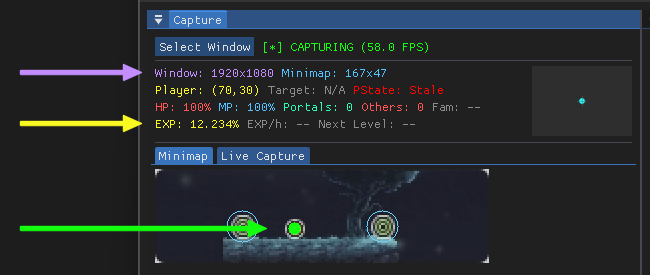
You'll know capture is working when you see:

* **Purple text** — correct window resolution detected
* **Yellow text** — correct EXP detected
* **Green circle** — player detected on minimap

<Frame>
  <img src="https://mintcdn.com/mania/u0wqJ_6S5_NFf6NM/images/capture-confirm.png?fit=max&auto=format&n=u0wqJ_6S5_NFf6NM&q=85&s=48221c79a020944678b9d75bae2379f1" alt="Capture confirmation showing resolution, EXP, and minimap detection" width="650" height="275" data-path="images/capture-confirm.png" />
</Frame>

## MapleStory Settings

Configure these in-game settings for best detection:

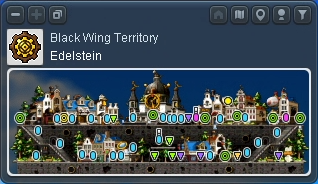
* **Minimap:** Top-left corner, map name visible
  <Frame>
    <img src="https://mintcdn.com/mania/3jgbNunZBw7600bS/images/minimap.png?fit=max&auto=format&n=3jgbNunZBw7600bS&q=85&s=8c7929ebf91e184bc46f1e6e60d92f24" alt="Minimap position" width="318" height="184" data-path="images/minimap.png" />
  </Frame>
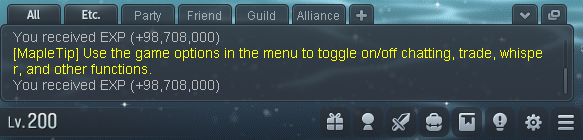
* **Chatbox:** Bottom-left corner as shown
  <Frame>
    <img src="https://mintcdn.com/mania/3jgbNunZBw7600bS/images/chatbox.png?fit=max&auto=format&n=3jgbNunZBw7600bS&q=85&s=4ee651e0681961746b14578d5b8b2efd" alt="Chatbox position" width="583" height="140" data-path="images/chatbox.png" />
  </Frame>